A server error (5xx) in Search Console is one of the easiest problems to misread. You open your site, it loads, and you assume Google is wrong. Sometimes Google is right, and your browser is simply not the same visitor as Googlebot.
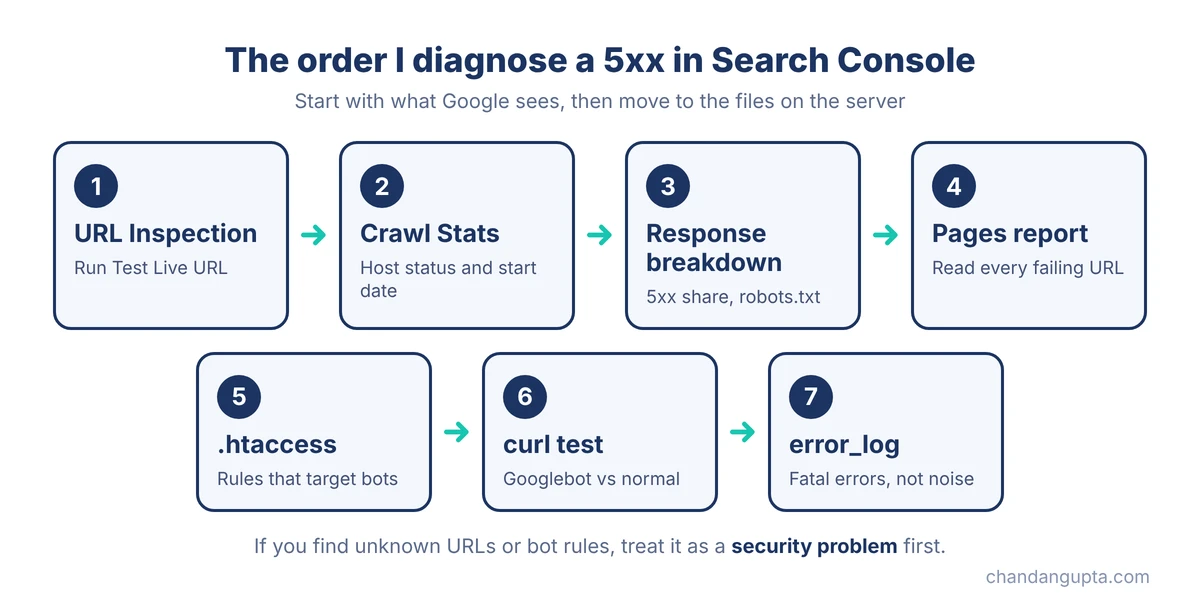
This is the order I use to diagnose a 5xx in Search Console, from the first report to the files on the server. It also covers the case people miss most often: a site that works for visitors and fails only for bots.
If you want the full audit order for a new site, my Technical SEO Checklist covers crawlability and server checks in its first section.
The short version
| Where to look | What to check | Why it matters |
| URL Inspection | Does Google itself get the error? Run Test Live URL. | Confirms the problem is real and current. |
| Crawl Stats > Host status | Which layer fails: robots.txt, DNS or server connectivity? | Tells you where to look, and where not to. |
| Crawl requests by response | Share of 5xx, 200 and “robots.txt not available”. | Shows the size of the damage. |
| Pages report > Server error (5xx) | Which URLs fail, and do you recognize all of them? | Unknown URLs are a security signal. |
| .htaccess and rewrite rules | Anything that treats bots differently from visitors. | The cause of the “fine for me, broken for Google” case. |
| PHP error_log | Fatal errors first. Ignore repeated warnings. | Often noise, sometimes resource clues. |
What a 5xx means, and why you may not see it
A 5xx status code means the server failed to answer a valid request. Google reports it as “Server error (5xx)” in the Pages report and in URL Inspection. Google’s documentation explains how HTTP status codes affect its crawlers.
The important part: Googlebot is a different visitor from you. It has its own user-agent, its own IP ranges and a different request pattern. If anything on your server treats bots differently, such as a firewall, a security plugin, a caching layer or a rewrite rule, you can have a site that looks perfect in your browser and fails for Google.
So the first rule is simple. Do not trust what you see in your browser. Trust what Search Console says Google received.
It is one of the first things I check when a 5xx does not match what I see in the browser.
Step 1: Confirm it with URL Inspection
Open URL Inspection, paste the homepage and run Test Live URL. This asks Google to fetch the page right now.
- If the live test fails with a server error, the problem is current and you can start diagnosing.
- If the live test passes but the indexed version shows an error, the problem may already be fixed and Google has not re-crawled yet.
Do not click Request Indexing while the live test is failing. Google will reject it, and repeated clicks do nothing.
Step 2: Find the start date and the failing layer in Crawl Stats
Go to Settings > Crawl stats. Two views matter.
Host status. It splits the problem into three layers: robots.txt fetching, DNS resolution and server connectivity. If DNS is fine, there is no point checking nameservers or your registrar. If server connectivity is failing, the problem is on the server or in the application running on it.
The chart start date. Find the day the errors began. Then ask what changed around that day: a plugin update, a redesign, a hosting change, a new security plugin or a security incident. A start date that matches an event is the best lead you will get.
Step 3: Read the response breakdown, not the average
The “By response” report shows the share of requests that returned 200, 5xx, 404, redirects and “robots.txt not available”.
Look at the 5xx share first. Then look at robots.txt. When Google cannot fetch robots.txt, it can slow down or pause crawling of the whole site until it can. That makes a partial outage much worse.
The “By purpose” report adds one more clue. If almost everything is Refresh and very little is Discovery, Google is only re-checking URLs it already knows. It has stopped finding new ones, which is typical for a site that keeps failing.
A warning about average response time. It can look healthy while the site is failing. Failed requests often return quickly, so a fast average does not mean a fast site. During an outage, treat the response breakdown as the real signal.
Step 4: Open the Pages report and read the URLs
Go to the Pages report, click into “Server error (5xx)” and read the list. Do not just look at the count.
- If the failing URLs are your normal pages, the server or a rule is failing for Googlebot across the site.
- If you see URLs you never created, such as pages in other languages or about topics that have nothing to do with your business, treat it as a security problem first and an SEO problem second.
Also check the Performance report for queries you do not recognise. A small business site showing up for gambling or pharma keywords is a strong sign that the site has been compromised.
Step 5: Check .htaccess for rules that treat bots differently
This is the step most people skip, and it is where the “fine for visitors, broken for Google” case usually lives.
Open the .htaccess file in the site root, through your hosting File Manager or FTP. A normal WordPress file has one block between “BEGIN WordPress” and “END WordPress”, and a few lines from your host or caching plugin. Anything else deserves a question.
I have seen this pattern when auditing sites, and it is easy to miss because everything looks normal in the browser.
Red flag number one is a rule that checks the visitor’s user-agent against a list of bots and rewrites the request somewhere else. It looks like this:
RewriteCond %{HTTP_USER_AGENT} Googlebot [NC,OR]
RewriteCond %{HTTP_USER_AGENT} Bingbot [NC,OR]
... (more bots) ...
RewriteRule ^.*$ /some-file.php [L]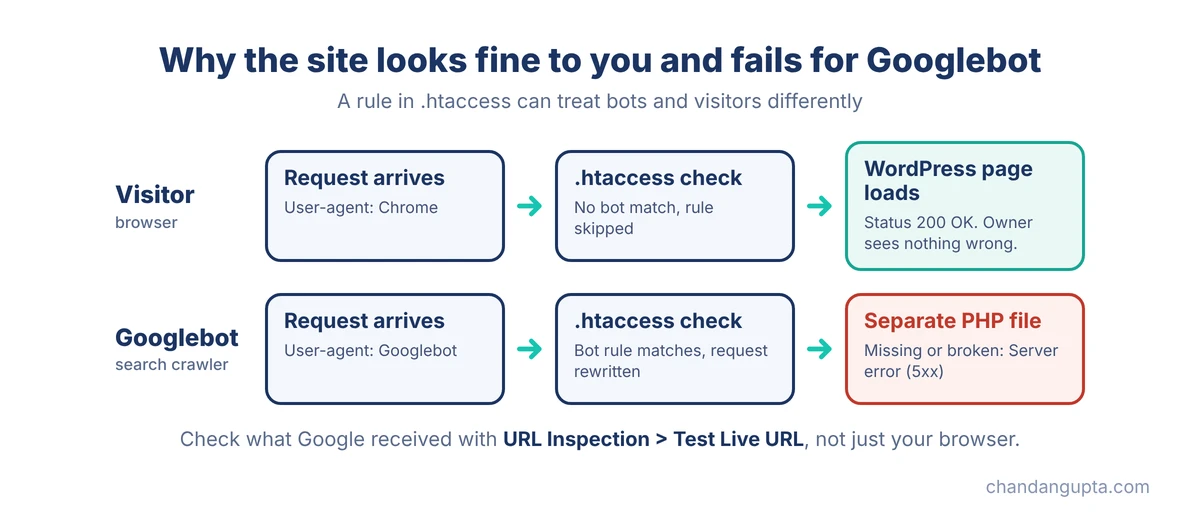
A normal site has no reason to send Googlebot to a separate PHP file. This pattern is used for cloaking: search engines receive one version of the site and people receive another. Google lists cloaking in its spam policies, and notes that hackers often use it to make a hack harder for the site owner to detect.
Red flag number two is a rule that skips logged-in WordPress users, such as a condition on the “wordpress_logged_in” cookie. That is how the owner can open the site while logged in and never see the problem.
If the file the rule points to is missing, broken or returns an error, Googlebot gets a 5xx while every normal visitor sees a working site. That combination is why these cases go unnoticed for weeks.
Do not copy the rules or edit the file blindly. Take a backup, note exactly what you found, and remove only the blocks that do not belong. Then check for the PHP files they pointed to.
Step 6: Test what Googlebot gets, not what you get
You can see part of this yourself. From a terminal, request the homepage with a bot user-agent and look at the response code:
curl -I -A "Googlebot" https://yourdomain.com/
curl -I https://yourdomain.com/
Using Windows? In Windows PowerShell, curl is an alias for a different command (Invoke-WebRequest), so the command above will throw an error. Type curl.exe instead:
curl.exe -I -A "Googlebot" https://yourdomain.com/Keep the quotes straight and the flags in capital letters (-I and -A). Then run the same command without -A “Googlebot” and compare the first line of both responses. If the normal request returns 200 and the Googlebot request returns something else, you have found a bot-only rule.
If the two commands return different status codes, something on your server is treating bots differently. This only catches rules based on the user-agent. A rule based on Google’s IP addresses will not show up here, so a clean result is not proof that nothing is wrong. Search Console’s Test Live URL is still the most reliable check.
If you ever need to confirm that a request in your server logs really came from Googlebot, Google documents how to verify Google crawlers. The user-agent alone can be faked.
Step 7: Read the error_log without panicking
The PHP error_log can be huge, and it looks like the answer. Usually it is not.
Search for fatal errors first. A single plugin warning repeated hundreds of thousands of times is noise, and cleaning it up would waste your day. What is more useful are lines about database deadlocks, failed cron saves or memory limits, because they point to resource pressure on the server.
Do not delete the log. Rename it and let the server create a fresh one, so you keep the evidence.
If you find a hack
If Step 4 or Step 5 turned up unknown URLs or bot-targeting rules, fixing the 5xx is not enough. This is the checklist I follow:
- Take a full backup before changing anything.
- Remove the malicious blocks from .htaccess and delete the PHP files they pointed to.
- Run a malware scan (a security plugin or your host’s scanner) and review every flagged file.
- Replace flagged or outdated plugins with fresh copies from the official source. Do not use “delete all” buttons blindly, because they can break the site.
- Update every plugin and theme, one at a time, and delete the ones you do not use.
- Review all admin users and remove any you do not recognise.
- Look for PHP files in the uploads folder, and review cron hooks and mu-plugins.
- Change every password: WordPress, hosting, FTP and database.
- Make sure the unwanted pages return 404 or 410, then use Validate Fix in the Pages report.
What not to do
- Do not keep clicking Request Indexing. Use Test Live URL first, and request indexing only for key pages once the test passes.
- Do not resubmit the sitemap again and again. Google reads it when it can reach the site. Resubmitting does not make the server answer.
- Do not “fix” the noindex header on sitemap_index.xml. Yoast adds it on purpose. The sitemap file should not be indexed, but the URLs inside it can be.
- Do not blame the hosting first. Check resource usage, but rule out rewrite rules and plugins before you migrate. A new host will not fix a malicious .htaccess you copy across.
For more checks to run on a site you have just taken over, see my post on SEO mistakes to look for on a new client website.
How to tell that recovery has started
After the fix, do not wait for a perfect chart. These signs come first:
- Crawl requests jump for a day or two. Google has been waiting to come back, and it catches up quickly once the server answers normally.
- Host status changes to “Host had problems in the past”. That is the status you want.
- The Discovery share in “By purpose” starts to rise, which means Google is finding new URLs again.
- Impressions in the Performance report climb back over the following weeks.
Be careful with the 90-day view of the response breakdown. It still includes the outage weeks, so it can show a high 5xx share long after the problem is gone. Read the daily chart instead.
The count in the Pages report falls slowly too. Validation takes time because Google has to re-crawl each failing URL, so do not expect zero in a day.
Server health is only one part of an audit. The on-page side is covered in my On-Page SEO Checklist 2026.
For a repeatable first pass on any site, grab the free PDF from my Technical SEO Checklist post.
FAQ
It means Google tried to fetch your page and your server failed to return it. The cause can be hosting, server configuration, an overloaded database, a plugin or malicious rewrite rules. It is a server-side problem, not a content problem.
Yes. If rewrite rules, a firewall or a plugin treat bots differently from people, visitors never see the problem. URL Inspection with Test Live URL is the quickest way to see what Google actually gets.
Cloaking means showing search engines different content from what visitors see. Google treats it as a spam policy violation. On hacked sites it is usually done through .htaccess rules or injected PHP files.
Yes, if they last. Google may slow down crawling and can drop pages it repeatedly fails to fetch. A short outage usually recovers quickly. A long one needs more time.
There is no fixed time. Crawling often picks up within days of the fix. Rankings and traffic can take longer, so watch Crawl Stats and the Performance report over several weeks.
Run Test Live URL first. If it passes, request indexing for your most important pages only. Repeated requests do not speed anything up.

Chandan Gupta is an SEO expert with 15+ years of experience helping businesses improve search visibility. He specializes in technical SEO, local SEO, and on-page optimization. Read his full story →